Window and UI settings (C-Play v2.2 and newer)
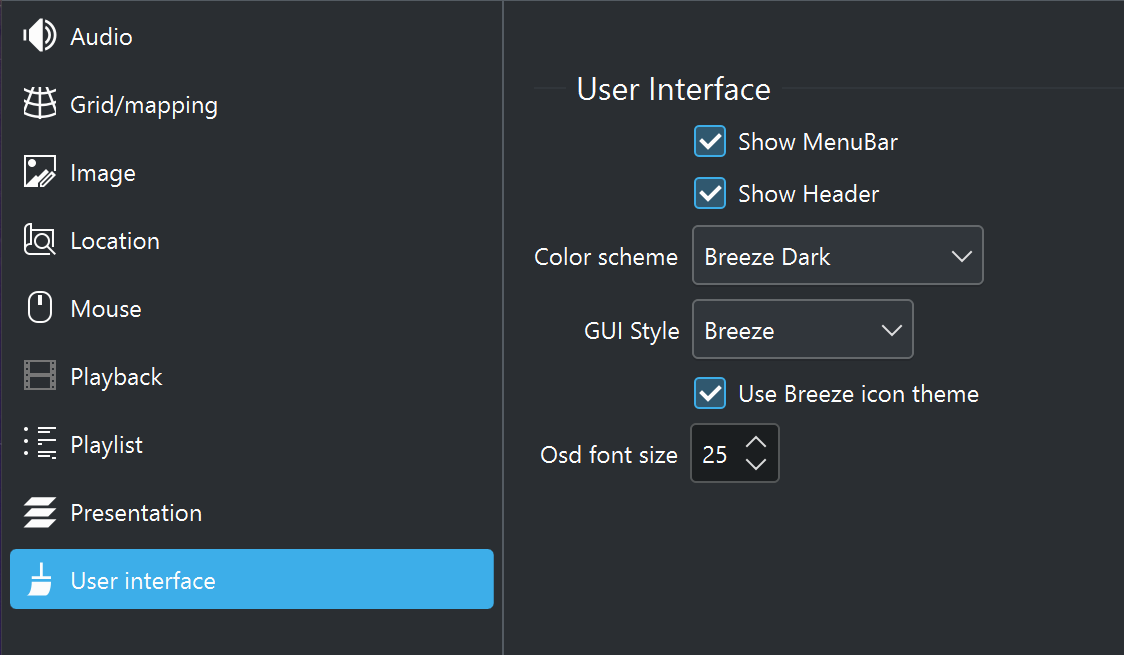
These settings control the appearance, layout, and behavior of the C-Play user interface.
On-screen display (OSD)
- OSD font size — Font size in points for on-screen information overlays such as chapter skip messages (0–100, default 25).
- Show OSD on skip chapters — When enabled (default), a brief message is shown on screen when skipping between chapters.
Header and footer visibility
- Show top bar / header — Toggle visibility of the top header bar containing playback controls and menus (default on).
- Show bottom bar / footer — Toggle visibility of the bottom footer bar containing the timeline and media info (default on).
Idle mode
When idle mode is enabled, the UI automatically hides after a period of inactivity, giving a clean full-screen view of the content.
- Enable idle mode — Turn idle auto-hide on or off (default off).
- Idle time — Seconds of inactivity before the UI hides (1–3600, default 60).
3D view
- Show 3D view at startup — Automatically open the 3D visualization mode when C-Play launches (default off).
- 3D view FOV — The FOV (field of view) of the 3D view, minimum 30 and maximum 150 degrees. Default 90 degrees.
- Hide dome overflow in 3D view — Mask content that falls outside the dome projection area (default off).
- Dome overflow opacity — Opacity of the dome overflow mask, from 0% (transparent) to 100% (fully opaque). Default 70%.
Node window behavior
- Node windows always on top at startup — Keep node display windows above all other OS windows when the application starts (default off).
- Window fade duration — Duration in milliseconds for fade-in and fade-out animations on the node window (0–20000, default 2000). Shown in the UI as seconds.
Open file behavior
- Show mapping mode on open file — When opening non-
.cplayfilefiles, prompt for the grid mapping mode to use (default on). - Use native file/folder dialogs when available — When opening file or folder dialog, the default is to use Windows native dialogs, but they can sometimes fail. C-Play handles this and launches the Qt/QML version if this happens. But turning of this checkbox makes us always show the Qt/QML version.
Theme and appearance
- Color scheme — Select the color theme for the application (e.g. Breeze Dark, Breeze Light, Breeze High Contrast). Loaded from the available color scheme files.
- GUI style — Select the Qt platform style (e.g. Breeze). Available styles depend on your system.
- Use Breeze icon theme — Use the Breeze icon set. Changing this requires an application restart.
Floating window
The floating window is a frameless secondary window for displaying content in a picture-in-picture style. It can show either the main video layer or a custom layer source.
Content selection
- Show main video layer — When enabled (default), the floating window mirrors the main video. Disable to select a custom layer instead.
- Show only main video in layer — When showing the main video, display only the video without additional layer compositing (default on).
- Custom layer type — Choose a layer source type: File, NDI, OMT, Spout, Stream, or Text.
- Custom layer path — The file path, NDI sender name, OMT sender name, Spout sender, stream URL, or text content for the custom layer.
- Volume — Audio volume for the custom layer (0–100%, default 100).
Position and size
- Screen — Select which display monitor the floating window appears on, from detected screens.
- Use screen parameters — Position the window according to the selected screen’s coordinates (default on).
- Width — Window width in pixels (32–8192, default 640).
- Height — Window height in pixels (32–8192, default 360).
- Position X — Horizontal position in pixels (-8192 to 8192, default 80).
- Position Y — Vertical position in pixels (-8192 to 8192, default 140).
Startup
- Visible at startup — Automatically show the floating window when C-Play launches (default off).
Click the “Update” button after changing floating window settings to apply them. The button turns orange while changes are pending and lime once saved.