Build and save video description files (*.cplayfile)
C-Play can open any format that MPV supports, which is basically any format that the included FFmpeg libraries support.
However, it is good practice to build a “.cplayfile” for all your video files, to store all of the descriptive settings, which C-Play gets from MPV or which can be user-defined.
These user defined settings are:
- Media title
- Stereoscopic mode
- 2D (mono)
- 3D (side-by-side)
- 3D (top-bottom)
- 3D (top-bottom+flip)
- Grid mode
- None (pre-split / prepared content. no mapping)
- Plane (regular flat content with various aspect ratios)
- Dome (180 fulldome/fisheye projection)
- Sphere EQR (360 equirectangular projection)
- Sphere EAC (360 equi-angular cubemap projection)
- Separate Audio File
- C-Play supports embedded audio tracks in the video; however, through this option a separate file can be loaded (on the master) as the default selected audio track.
- Separate Overlay File
- C-Play supports loading an overlay image file (such as .png or *.jpg) to be put on top of the video. This might be useful when mapping a static world map on top of a video showing ocean flow, for instance. This overlay file needs to be loaded with the video and can only be defined in a *“.cplayfile*”.
- Orientation (new in v2.3)
- When using dome or sphere grid modes, the current viewing orientation (yaw, pitch, roll) can be saved into the .cplayfile. For dome mappings only the yaw is stored; for sphere mappings (EQR and EAC) all three axes are saved. Enable the “Save orientation” checkbox in the save dialog when the current orientation differs from the default. On load, the saved orientation is restored automatically.
Sections
Sections are a concept similar to, but more powerful than, bookmarks or chapters in a video. Every section has a title, start time, end time and eos(end of section) mode.
Basically, a section is a piece of the video that can be triggered easily, with various end behaviors depending on eos mode. The different eos modes are:
- Pause
- Fade out video, then pause
- Continue video (do not pause)
- Next section
- Loop section
The sections view, where sections are created and managed, is opened in the bottom right (or bottom left, depending on settings).
It should be straight-forward to build sections, and while you can edit start and stop time manually, you can easily grab them from the current time in the video.
Workflow for *.cplayfile creation
- Just load the video (mp4 etc) in C-Play.
If the setting “Load audio files in same folder as video file” in the audio configuration settings is checked, any adjacent audio file will be loaded as an audio track as well.
-
In the header menu, select correct “Audio File”, “Stereo (2D or 3D) mode” and “Grid Mode”, such that your video is combined with desired audio track and looks correct in your environment (arena, dome etc).
-
Optionally, define “Sections” for your movie/video if you want to have users jump to certain pre-defined locations.
-
Click the button “Save As C-Play File” in the header menu, which will open the dialog below.
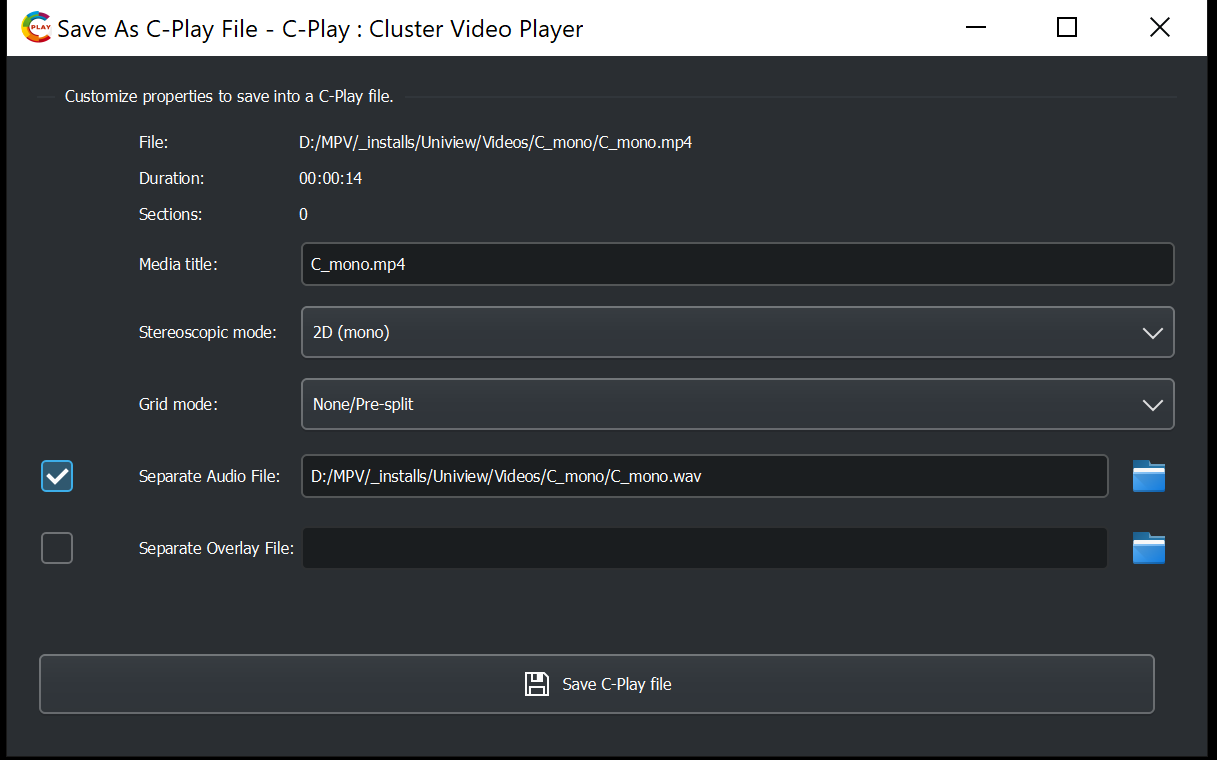 The dialog will already be pre-defined with the current user defined values currently chosen in C-Play. You can change any value here before you save as well, and optionally add an overlay image as well.
 -
Click “Save C-Play File” to save it, preferably in the folder you defined in the “General settings” as “Common C-play file location”, which if set, is the start location when this dialog opens.